
What's new in Eagle
- Added new user permission 'Manage own notes'. Use this to give users access to edit/delete their own notes but not other users notes
- Added new user permission 'View own contracts'. Use this to give view access to listing agent users who do not have permissions to 'Manage own contracts'
- Upgraded 'Update Field' automation action to update a contact custom field. Use this to capture information into a custom field when a contact is created or from an enquiry/inspection
- Added websites views to API property endpoint
- Various tweaks and bug fixes
- Upgrades to Contact Filters, you can now filter on Landlord attributes (in addition to Vendor attributes)
- Trust Accounting - Improvements to the 'Finalise Sale' tab on a Contract (now renamed to 'Account Sale' tab)
- 'Update Field' automation action can now update a contacts 'property tag' preferences
- Added new merge field {{property_rental_date_available}}. Use this to merge the available date on templates or automations relating to a rental property
- Added new automation triggers 'A property tag is added to an address' and 'A property tag is removed from an address'
- Upgraded automation Send Email and Send SMS actions to be able to send to current address owners
- Added ability to load SMS templates for bulk SMS campaigns
10 June 2020
Start and schedule automation sequences
Have you ever wanted to start an automation half way through? Or schedule an automation to start at some point in the future?
With this new release, now you can.
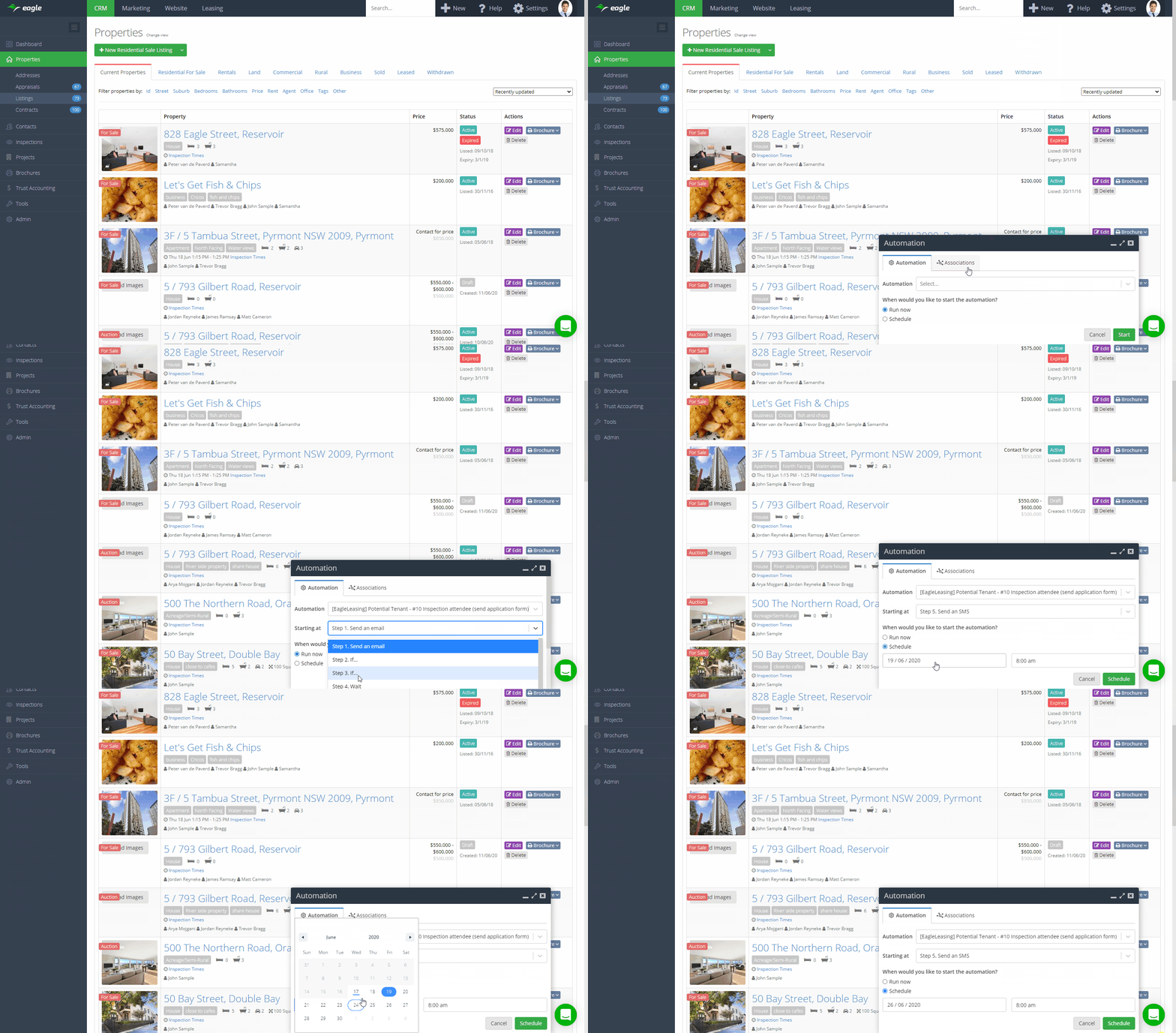
- Trigger an automation from any screen
- Select what step the automation starts at
- Schedule an automation to start at some point in the future
- Select exactly what data you want to use in the automation
To check it out, go to the "New" at the top of the screen and click "New Automation"
- Added 'Add Note' popup component, read more here
- Upgrades to Contract filters, now find contracts by the property listing agent or custom field
- Upgrades to Eagle API
- Added 'New Automation' popup scheduler, read more here
- Various fixes and tweaks
This release adds more flexibility to the recording notes in Eagle.
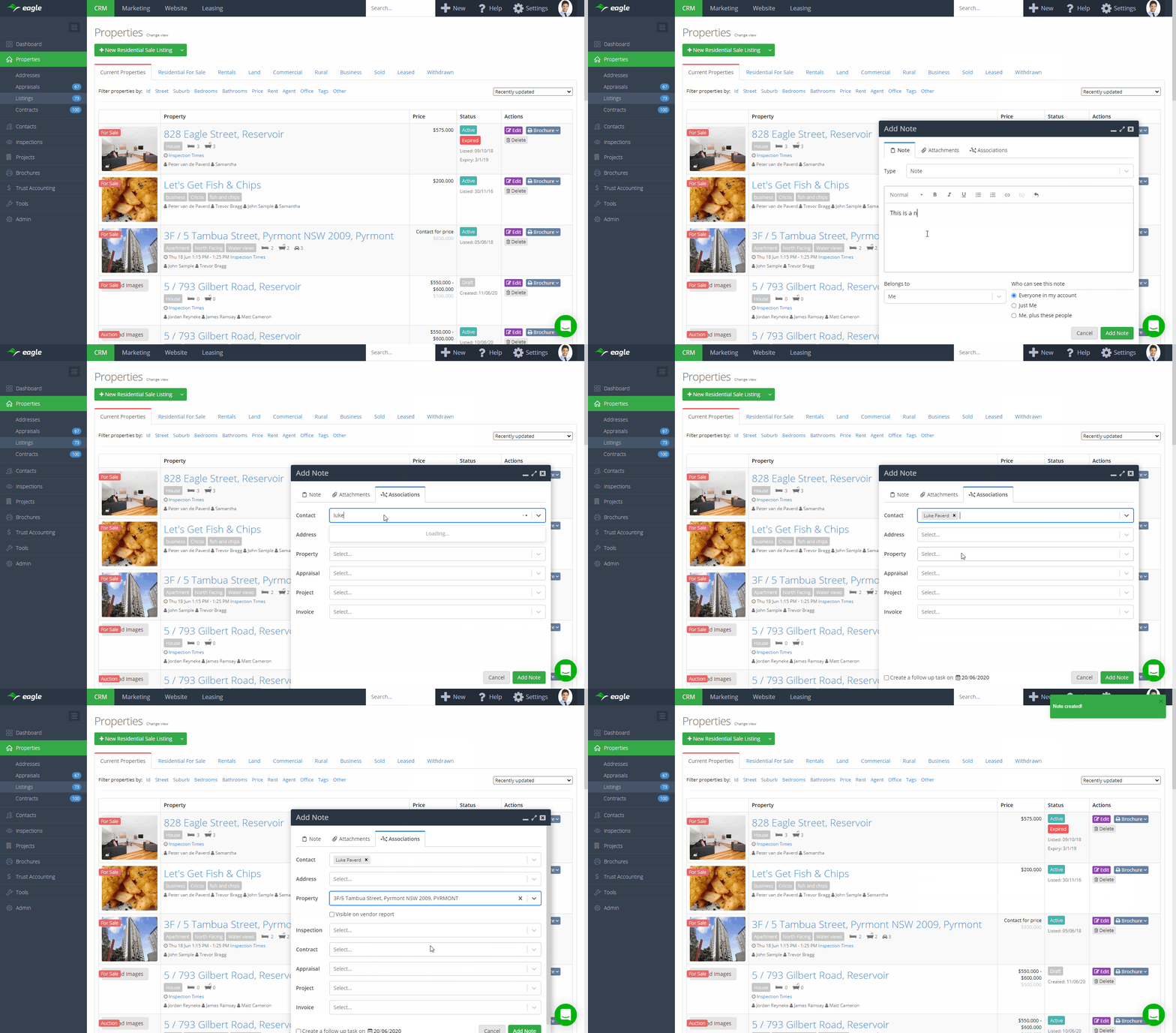
Like the other components we've released lately, the "Add Note" popup allows you to add from anywhere, and about anything. It persists as you browse through the software, and can be minimised and maximised.
It also adds the following functionality:
- Add notes on contacts, addresses, listings, appraisals, contracts, projects, invoices
- Log calls and their outcomes - connected, no answer, left voicemail
- Specify whether the note should show on the vendor report
- Attach files to the note
- Create follow up tasks
To try out the new functionality, go to the "New" menu at the top right, and click "New Note"
- Added advanced filtering to contracts. Read more here.
- Added 'Send Letter' popup component. Read more here.
- Added Events to the Eagle API
- Tweaks and bug fixes
This release adds more flexibility to the letters function in Eagle.
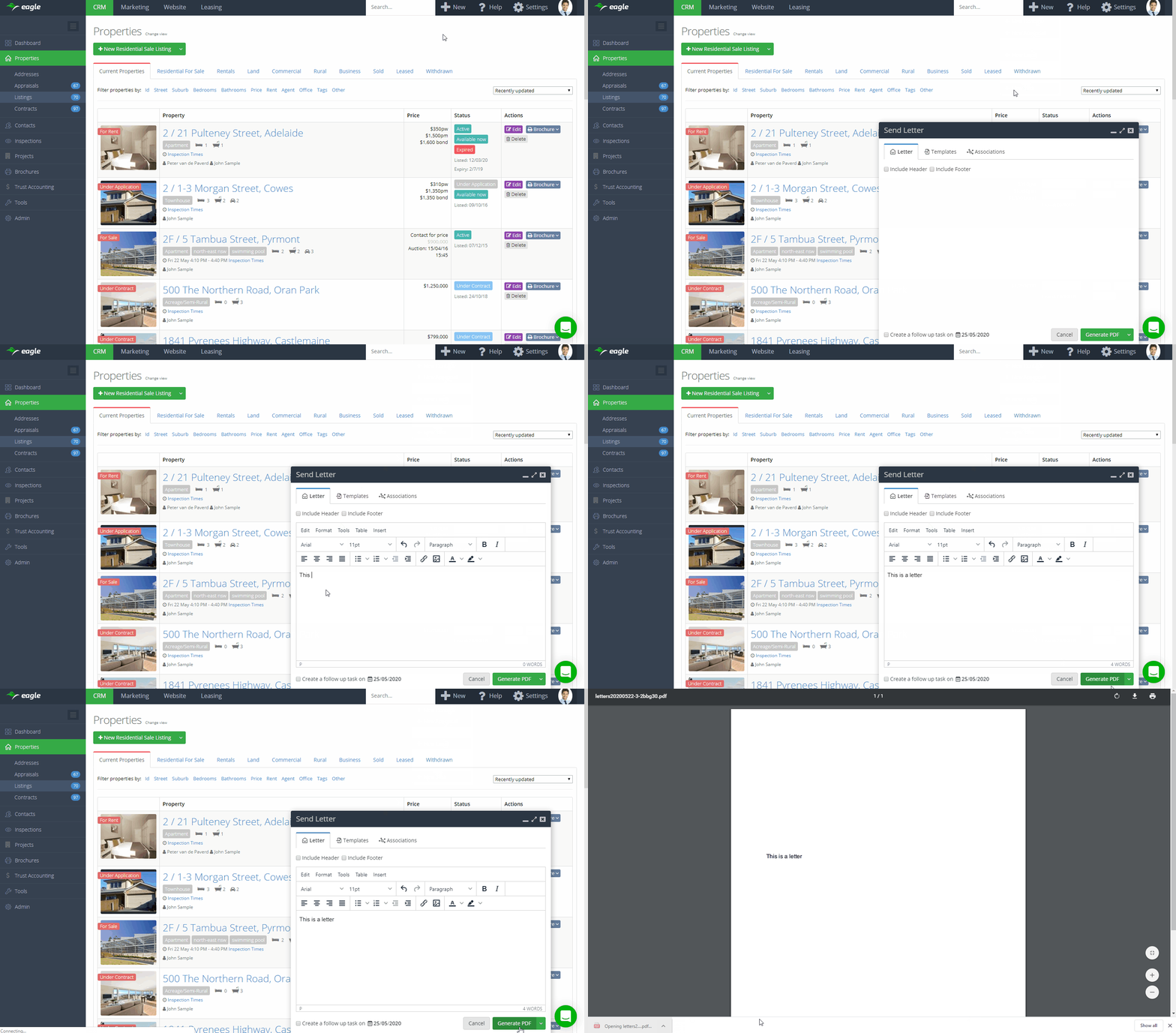
Firstly, like the other components we've released lately, the "Send Letter" popup allows you to send letters to anyone, from anywhere, and about anything. It persists as you browse through the software, and can be minimised and maximised.
It also adds the following functionality:
- Attach letters to any type of property including drafts and old sold listings
- Log a note on the activity feed that you've sent the letter
- Set a follow up task
- Associate the letter with any data in your database
- Quickly search and find the right template
To try out the new functionality, go to the "New" menu at the top right, and click "Send Letter"
19 May 2020
Advanced filtering and ordering on appraisals
As part of the roll out of upgraded filters, we have just released advanced filters and sorting to appraisals so you can drill down your appraisals further with the new advanced filtering logic.
You can apply many filters at once using AND or OR conditions to drill down your results.
For example you could find appraisals assigned to a specific user AND the vendor lives in 'vic' AND the interest level is 'warm' OR the interest level is 'hot', then sort them by 'Interest level'.
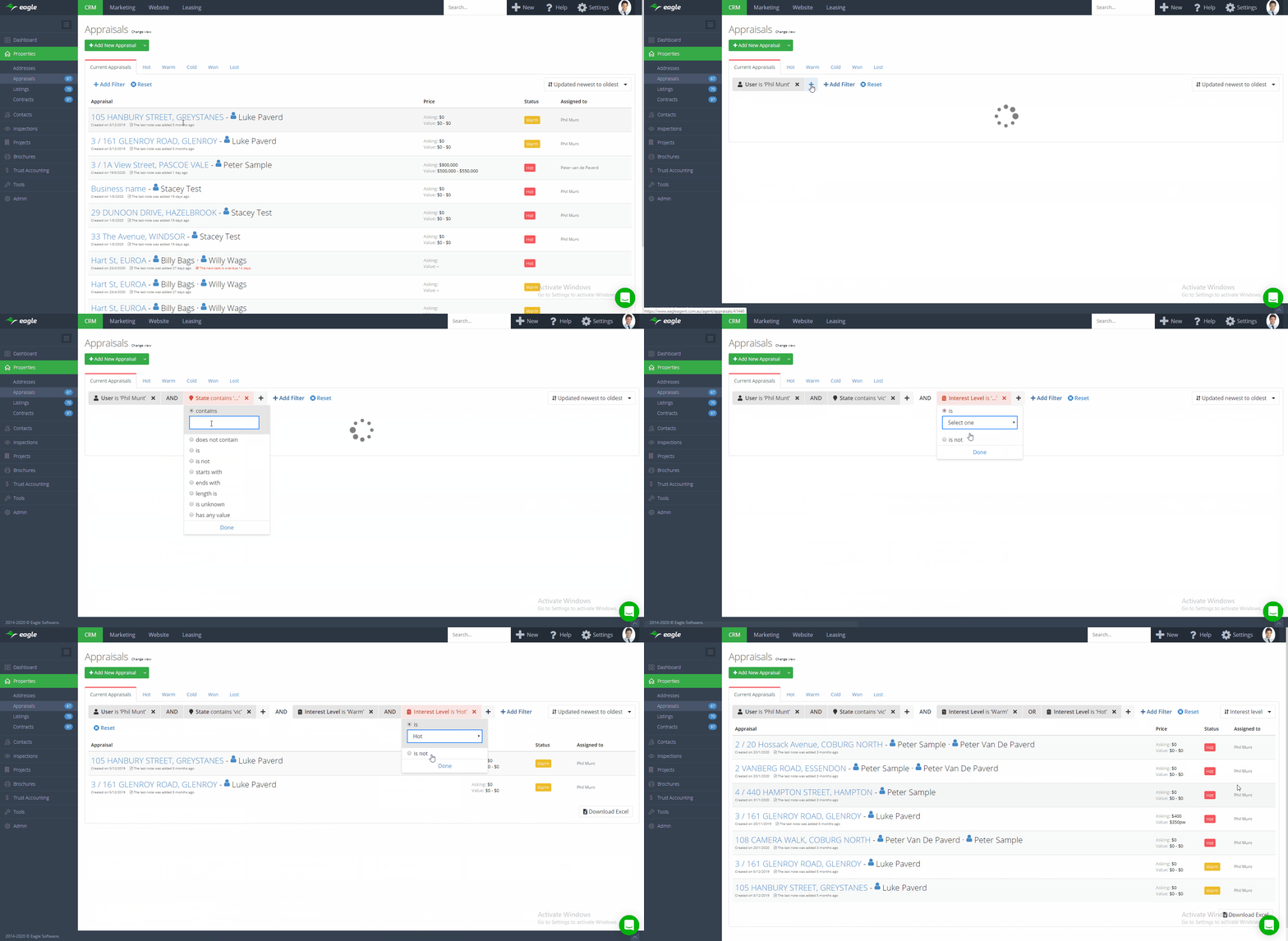
Filter appraisals by appraisal details. Examples include:
- Find appraisals with an interest level of hot
- Find appraisals with an asking price above $500,000
- Find appraisals in a specific suburb
- Find appraisals based on properties with air conditioning or ducted heating
Filter appraisals by the prospective vendor details. Examples include:
- Find appraisals where the vendor's email is unknown
- Find appraisals where the vendor lives in a different state
- Find appraisals where the vendor contact record is owned by a specific user
- Find appraisals where the vendor has unsubscribed from bulk emails
Sort filtered results to see relevant results. Examples include:
- Sort appraisals by newest or oldest for when you created them
- Sort appraisals by their interest level
- Sort appraisals based on when the last note was added
- Sort appraisals highest or lowest based on price
Filter appraisals by custom fields
- Find appraisals based on your own custom fields
To start using the new appraisal filters, go to CRM > Appraisals page and click 'Add filter'.
- Quick search box now shows the most relevant property date from sold date, leased date, active date, created date, withdrawn date or off market date.
- Added new Contract sorting. Sort your Contracts from (newest to oldest) or (oldest to newest) by:
- Created date
- Updated date
- Acceptance date
- Deposit date
- Finance date
- Unconditional
- Settlement date
- Added new advanced contract filters. Read more here.
- API upgrades - new endpoints and additional data added to existing endpoints
- Various performance and optimisation improvements, tweaks and bug fixes
30 April 2020
Advanced filtering and ordering on contracts
Now you can filter and sort contracts in more ways using advanced logic.
You can apply many filters at once using AND or OR conditions to drill down your results. For example you could find contracts with a 'settlement date after <today's date>' AND 'the listing agent is Mary Smith' OR 'the listing agent is John Smith'.
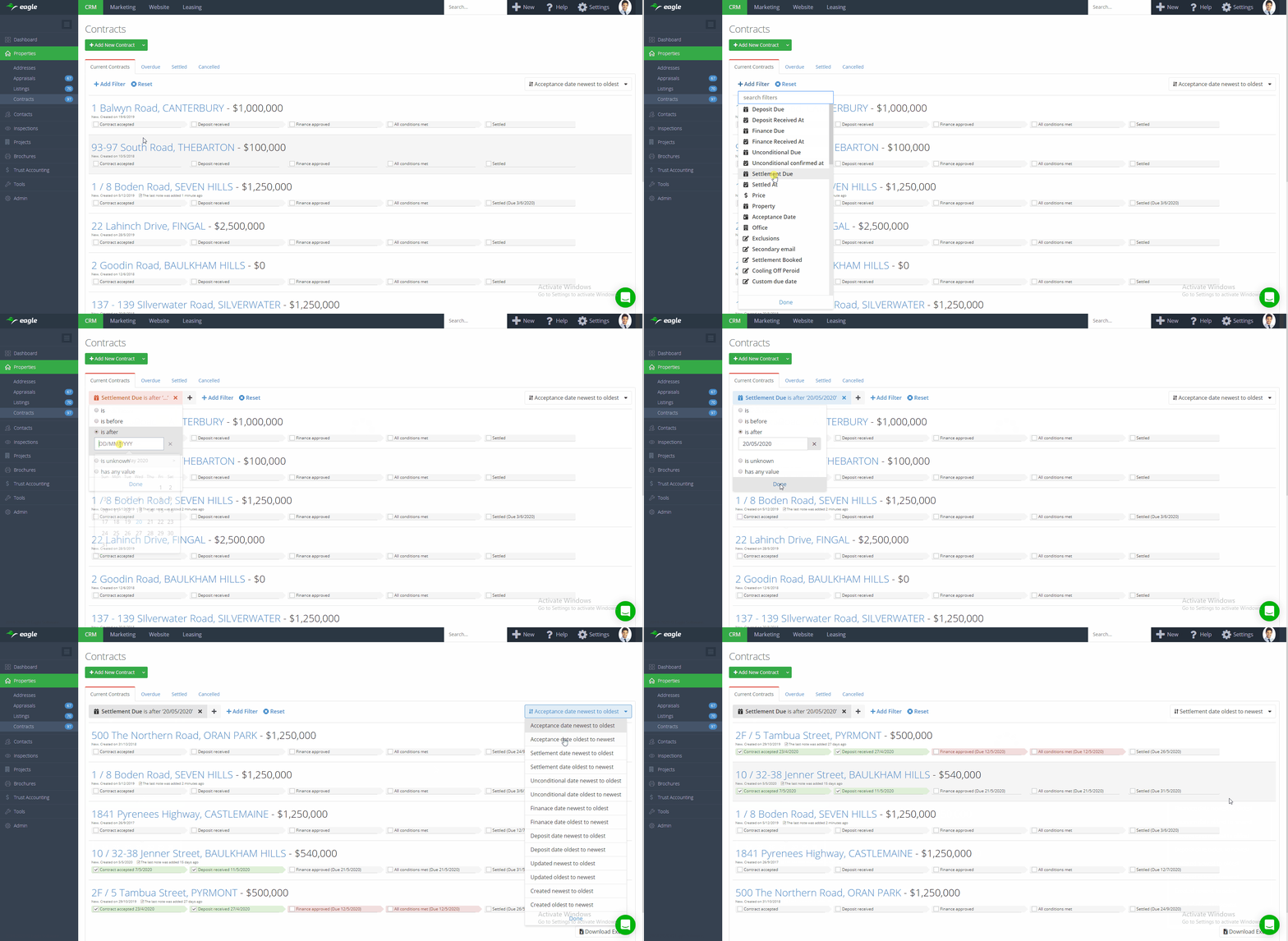
Filter contracts by key contract dates and due dates. Examples include:
- Find contracts where deposit has not been received
- Find contracts that are not yet unconditional
- Find contracts without a settlement date set
- Find contracts that settled before and/or after a certain date
Sort by contract dates newest or oldest first. Examples include:
- View upcoming deposit due dates
- View upcoming finance due dates
- View upcoming unconditional dates
- View upcoming settlement dates
- View recent settlements
Filter contracts by contract, property, vendor and/or purchaser data fields. Examples include:
- Find all contracts with a specific buyer
- Find all contracts with a specific vendor
- Find all contracts form a specific street, suburb, postcode etc.
Filter contracts on custom fields
- Find contracts based on your own custom fields
To start using the new contract filters, go to CRM > Contracts page and click 'Add filter'.
